 PairProof
Show clients the work, not just tell them.
Photograph Before and After by area, and PairProof builds a client-ready PDF, photo card or video in minutes. Free to start, no account, and your photos stay on your device.
Get PairProof on the App StoreFree with optional Pro upgrade · iOS 17+ · Unlimited Basic reports
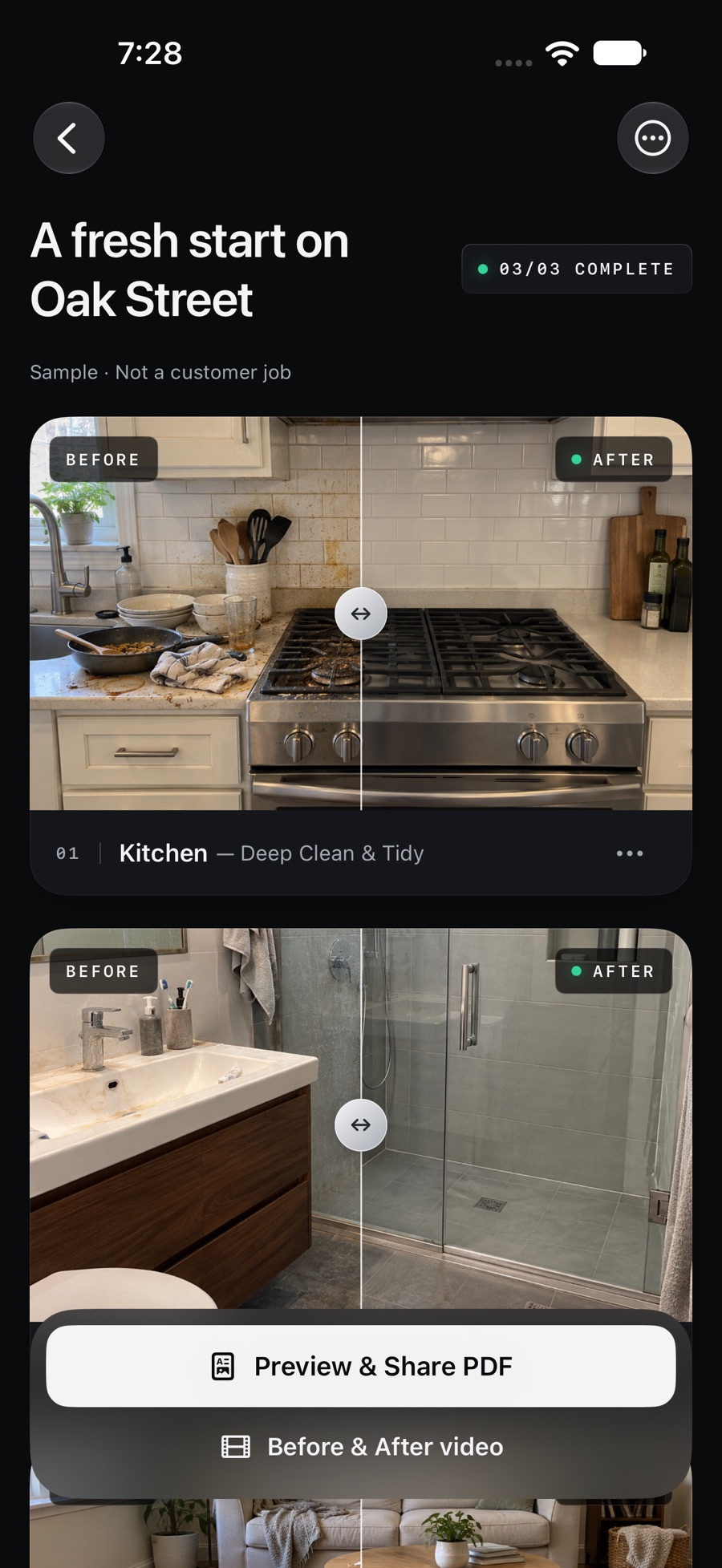
From last photo to sent report in three steps
- Photograph each area. Add a Before and an After photo per room or zone. PairProof flags any missing shot before you export.
- Pick a design. Preview four report templates with your own photos in Report Studio.
- Share it. Send a PDF, a square or vertical photo card, or a video that plays each finished area as a reveal.
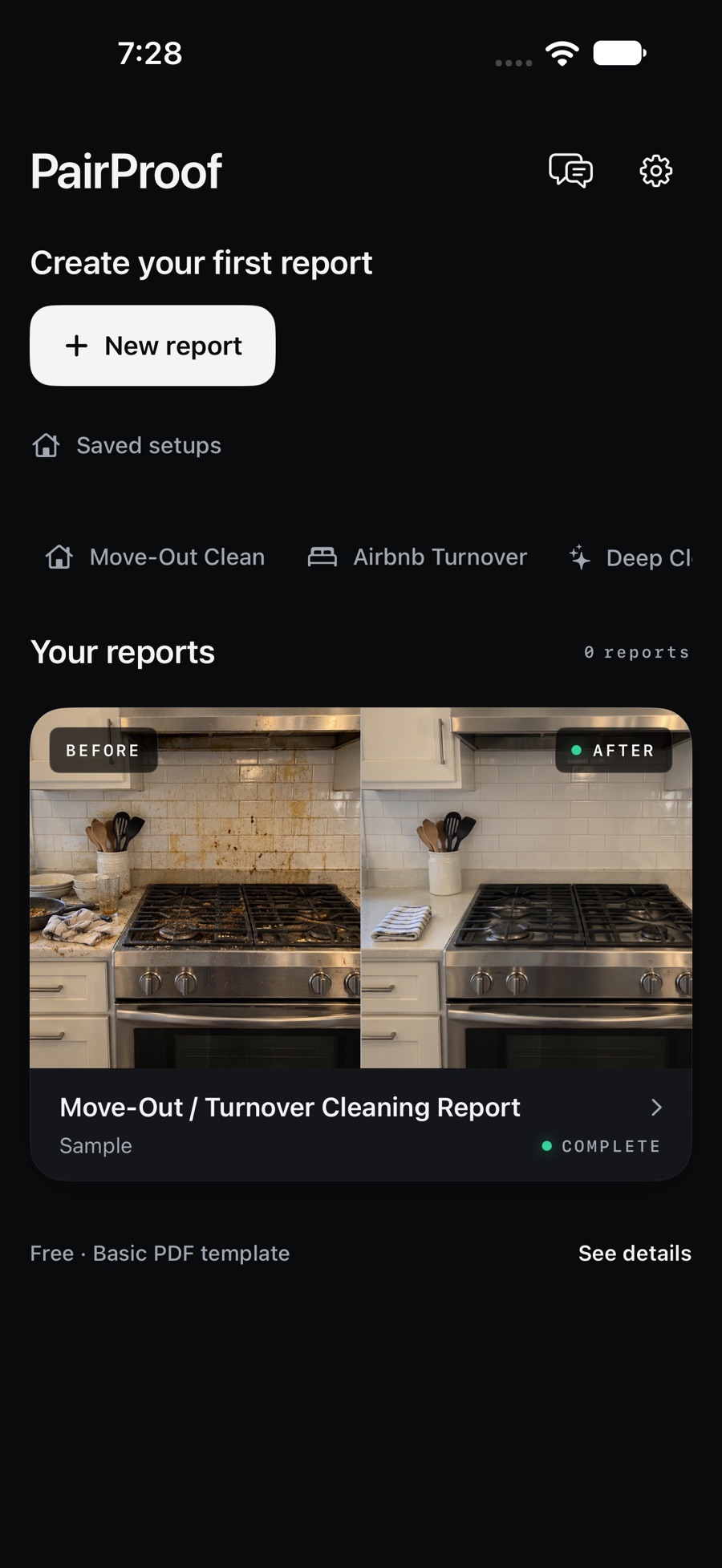
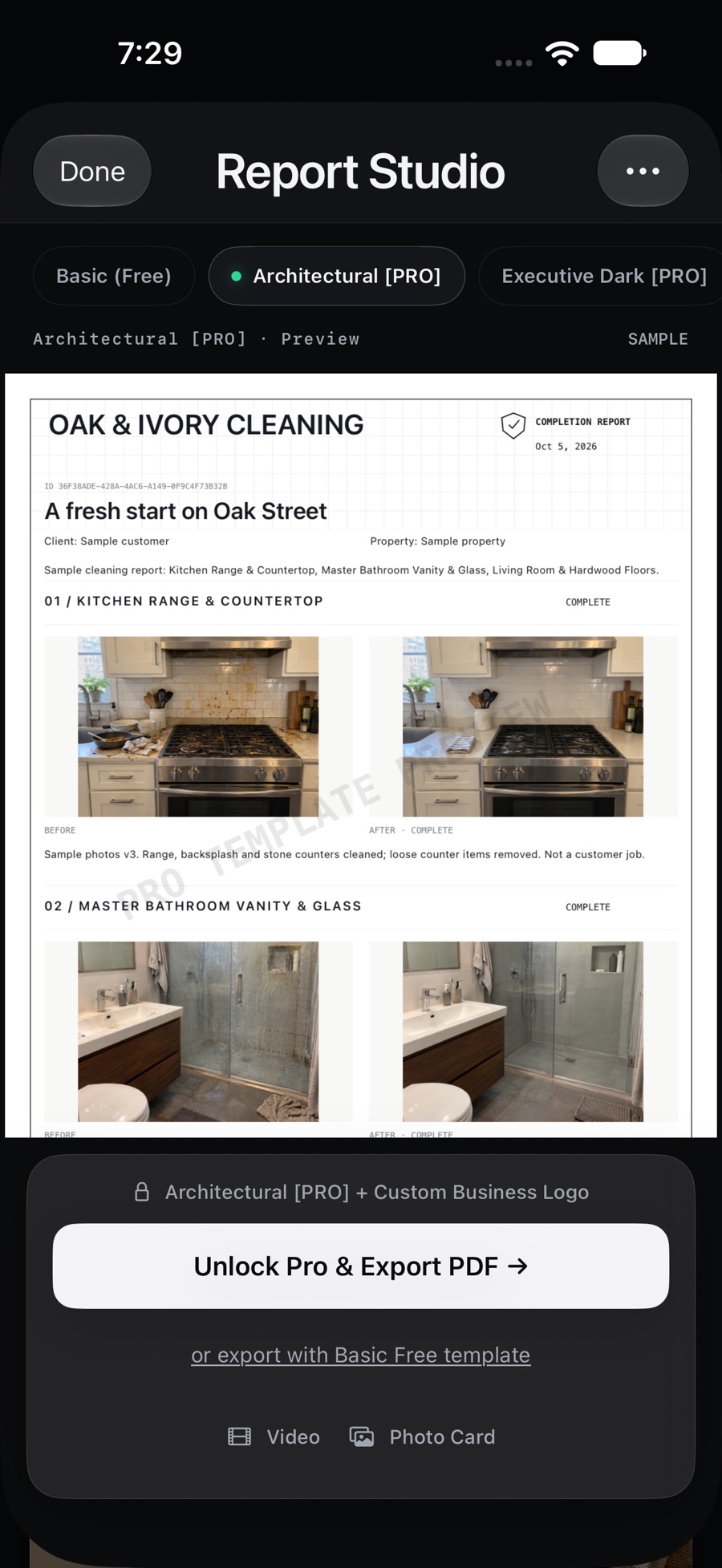
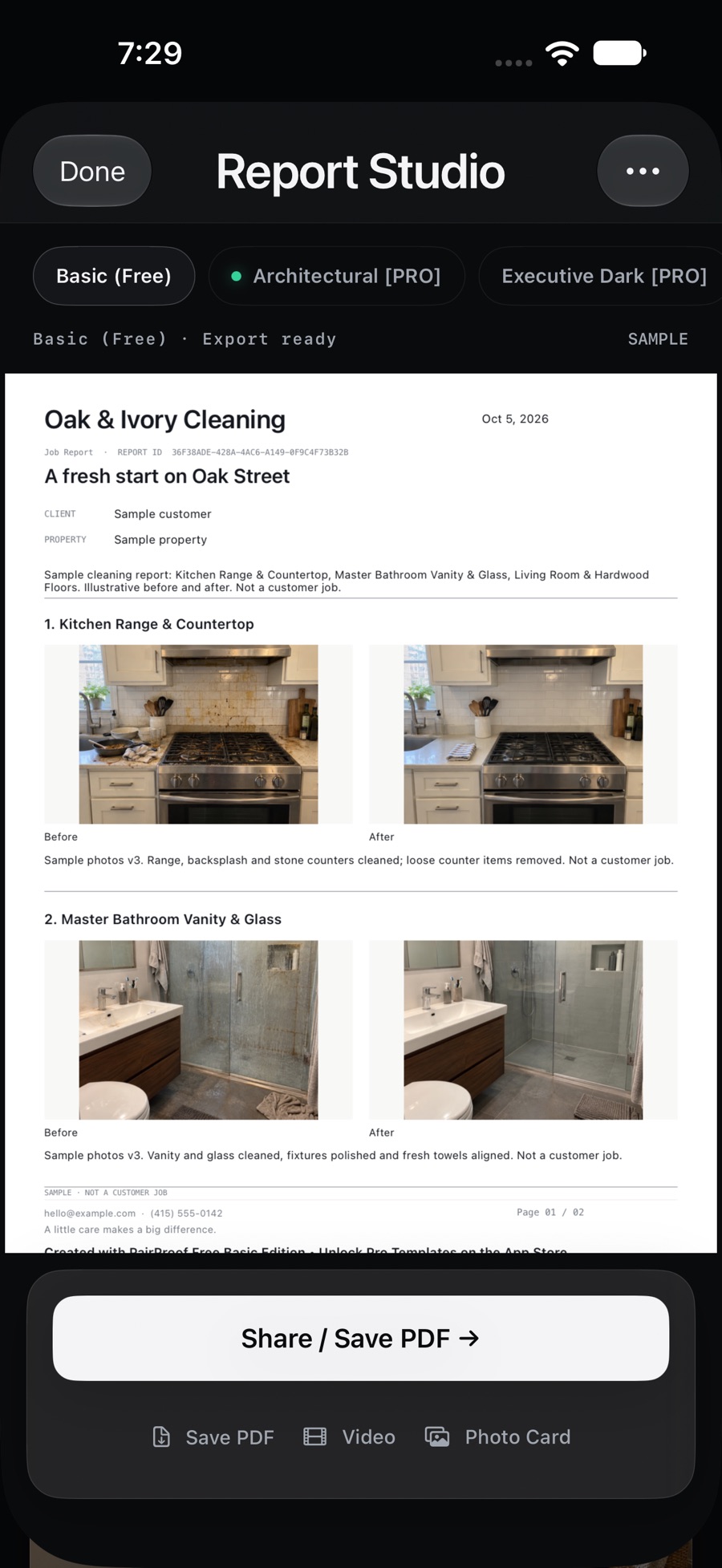
Screens show sample content, not customer jobs.
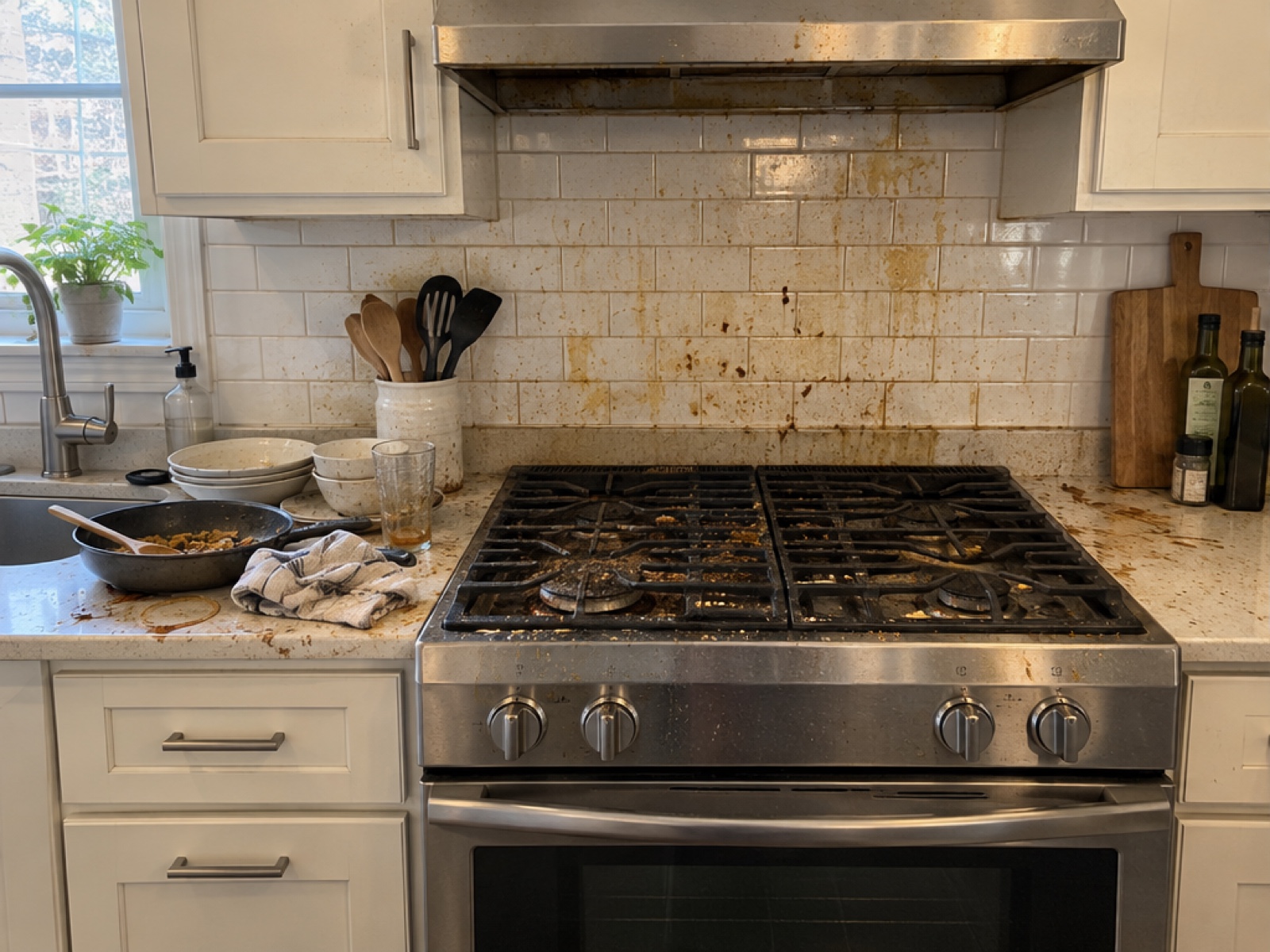 Before
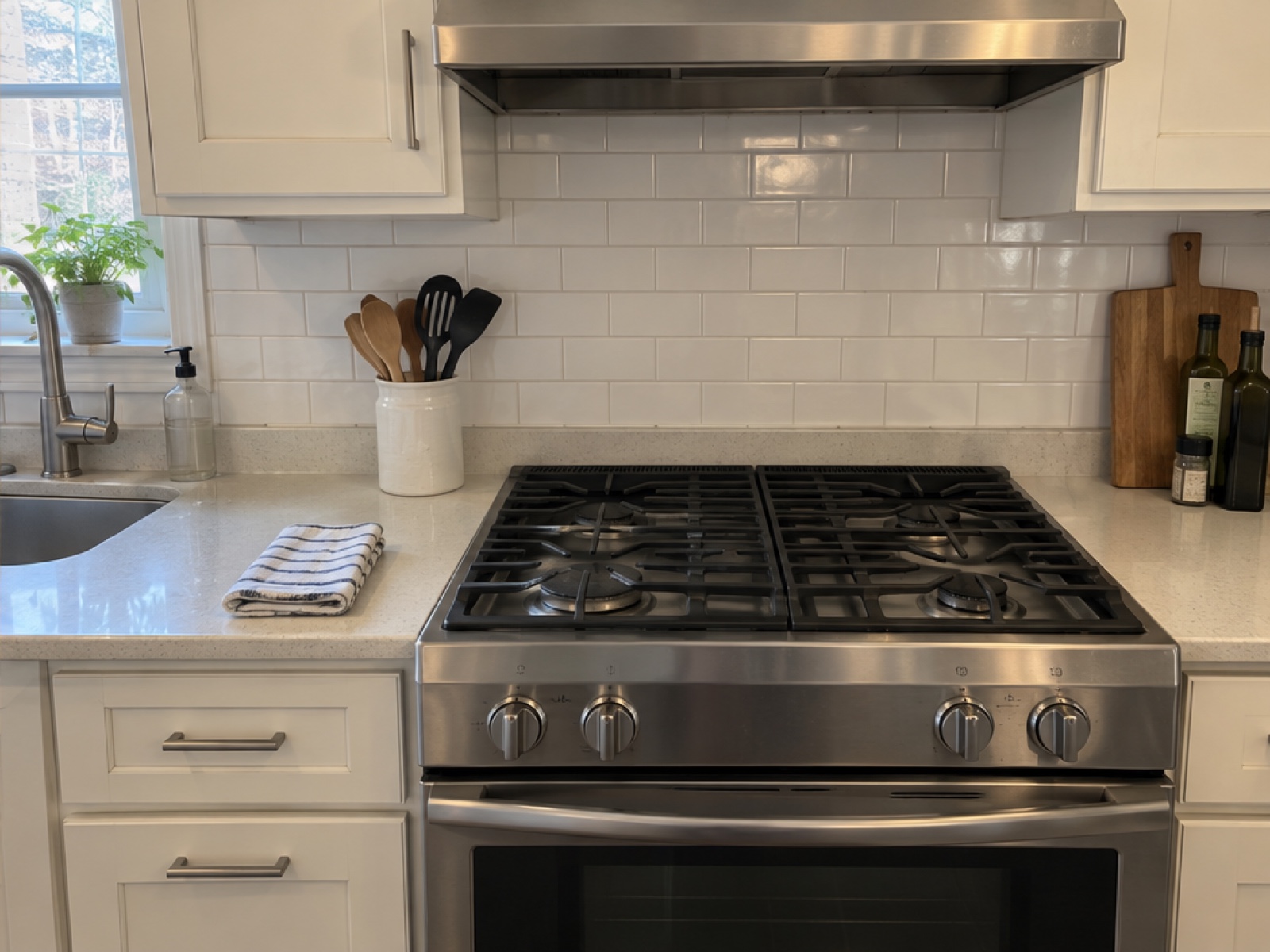 After
After
Built for the way service work actually goes
Checklists for your trade
Cleaning, Auto Detailing and Exterior Services presets, with 1–30 editable areas.
Reusable property setups
Save a property and its checklist, then reuse it next visit or share it by link or QR. Setup links are not encrypted.
Multi-area videos
Choose complete areas for a vertical reveal video. Five seconds per area, in report order.
Ghost Camera Pro
Overlay the Before photo on the live camera so your After shot lines up. The guide never appears in the saved photo.
Privacy-minded sharing
Cards and videos leave out client name, address and work notes. Always check the result before posting.
On-device storage
No account and no cloud photo library. Reports and photos stay on your iPhone or iPad.
Free to start. Upgrade when you want your brand on it.
Basic
Free
- Unlimited reports, edits and PDF exports
- Your business name, email and phone, plus client, property, date, work notes and photos in the PDF
- Free photo cards and videos
- No custom logo; PairProof attribution on every page, card and video
Pro
$19.99 / year
or $4.99 / month, or $39.99 once
- Architectural, Executive Dark and 1-Page Receipt templates
- Your custom logo, plus your business name on photo cards and videos
- Optionally remove PairProof branding from premium PDFs, cards and videos
- Ghost Camera
U.S. prices shown; the price Apple displays in the app applies. Monthly and annual plans renew automatically until canceled through Apple; lifetime is a one-time purchase. Introductory offers, if any, are shown by Apple to eligible customers only. Bought Unlimited before? Tap Restore purchases with the same Apple Account to get Pro at no extra cost.
Questions
Where are my photos stored?
Reports and processed photos are stored in the app on your device. PairProof has no developer-hosted photo library or cross-device sync. Saving or sharing sends the exported file only to the destination you choose. Save important PDFs to Files before removing the app.
How do I restore my purchase?
Open Purchase details, then choose Restore purchases, using the Apple Account that made the purchase. An original verified Unlimited purchase becomes Lifetime Pro. Restoring purchases does not restore local reports or photos.
Why can't I export a PDF?
A complete PDF needs a Before and an After photo for every included area, plus the required job details. Follow the missing-photo guidance. Basic export never requires Pro. A premium template can be previewed free, but exporting it requires active Pro.
Can I edit a report after exporting?
Yes. Reports stay editable and there is no report-count limit.
How do I photograph the next visit?
Use Report actions → Next visit. It keeps the client, property and area layout and starts with empty photo slots and notes. Saved properties and checklists are managed in Settings.
Can I share a video while some areas are unfinished?
Yes. Select one or more complete areas; incomplete areas stay listed but can't be selected. Each area plays for five seconds, plus a two-second ending when PairProof credit is on. Pro can turn the credit off.
How does a shared property setup work?
In Settings → Saved properties & checklists, choose a setup and Share. The link and QR are not encrypted, so anyone who receives them can read the property name, address, trade, area names and default notes. Photos, client name, business branding and report history are not included. The recipient reviews and confirms before a new local report is created.
Can I post a card or video without exposing client details?
Cards and videos omit client name, property address and work notes, but they still show the selected photos and area name; cards also show the service date. Inspect the result first: photos, custom area names or your logo may contain personal information.
What if camera or Photos access was denied?
Open your device's Settings, find PairProof and allow Camera access. You can also pick existing images with the Photos or Files picker. If saving a video to Photos is denied, use Export and share video to save to Files.
How do I cancel a subscription, or get a refund?
Use Manage subscriptions in Purchase details, or Apple's subscription management. Apple handles payments and refunds through Report a Problem. Local reports stay on your device if Pro access ends.
Need a hand?
Email haowenapps@gmail.com with your device model, iOS version, app version and what happened. Please don't send client photos unless needed. You can also use Send feedback on the app's home screen or in Settings.
Email support Rate PairProof